

SPF, DKIM and DMARC for Microsoft 365: A UK Business Guide for 2026
A practical Elmdale IT guide to securing Microsoft 365 email with SPF, DKIM and DMARC, including DNS examples, rollout guidance and common mistakes to avoid.
Quick answer: if your organisation uses Microsoft 365 for email, you should confirm that SPF is correct, enable DKIM signing for each sending domain, and publish a DMARC record so receiving mail systems know how to treat messages that fail authentication. For most UK SMEs, the safest approach is to start DMARC in monitoring mode, review the reports, fix legitimate senders, then gradually move to quarantine and reject.
Why email authentication matters in 2026
Email remains one of the most common routes into a business. Attackers do not always need to compromise a mailbox to cause damage; sometimes they simply spoof a trusted-looking domain and rely on the recipient believing the message is genuine.
SPF, DKIM and DMARC are three DNS-based controls that help receiving mail platforms decide whether an email really came from an authorised source. Microsoft describes SPF as a way to validate permitted sending sources for a domain, DKIM as a signing mechanism for outbound mail, and DMARC as the policy layer that sits above SPF and DKIM. The National Cyber Security Centre also includes these controls in its email security and anti-spoofing guidance.
For Elmdale IT customers, these checks form part of a wider Microsoft 365 and cyber security review. They are particularly important for organisations that send invoices, legal documents, school communications, HR messages, password resets or customer payment information by email.
What SPF, DKIM and DMARC actually do
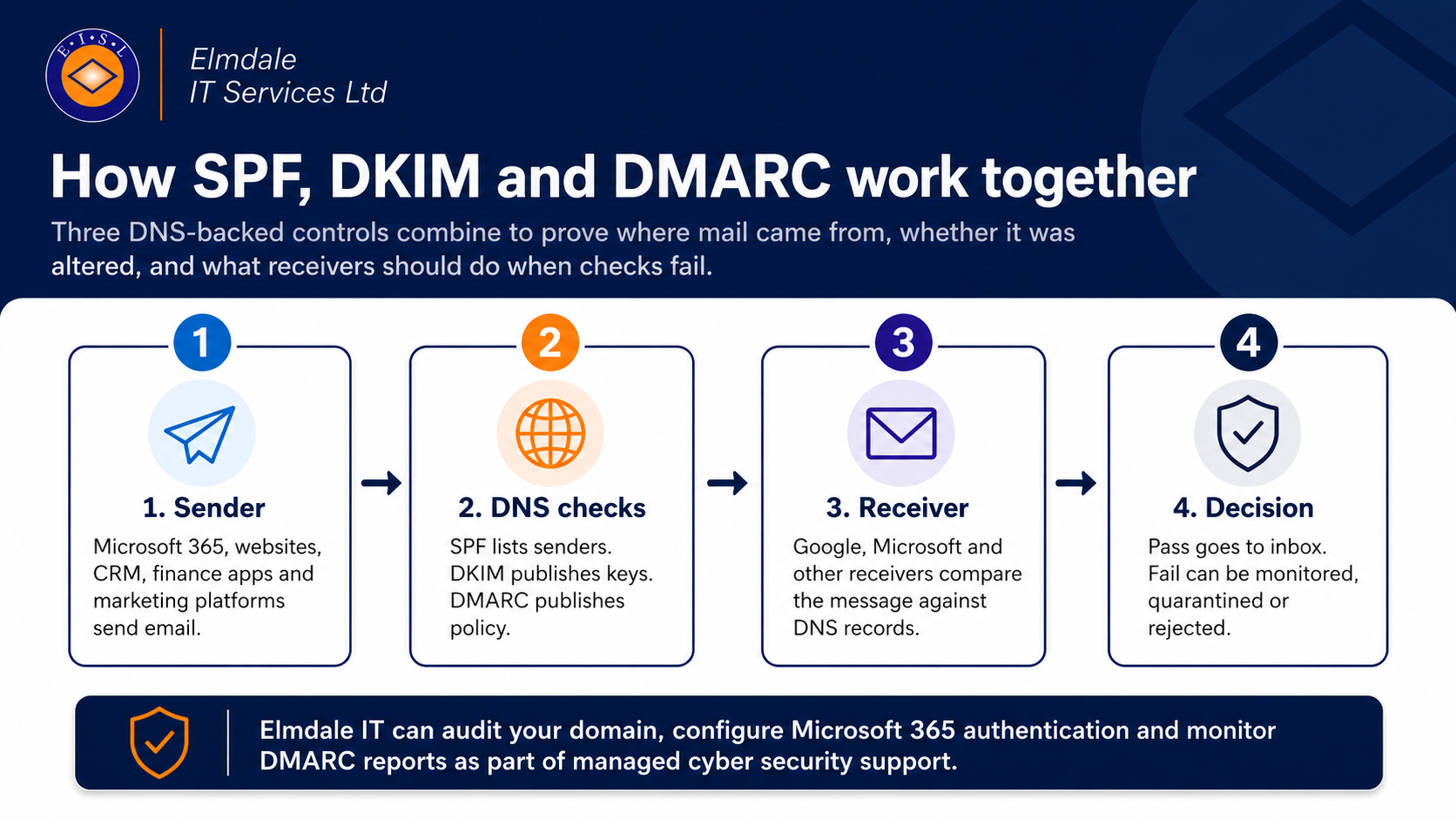
SPF tells the internet which servers are allowed to send email for your domain. A typical Microsoft 365-only SPF record authorises Microsoft’s protection service. If your website, CRM, helpdesk, finance platform or marketing system also sends email as your domain, those services must be included as well.
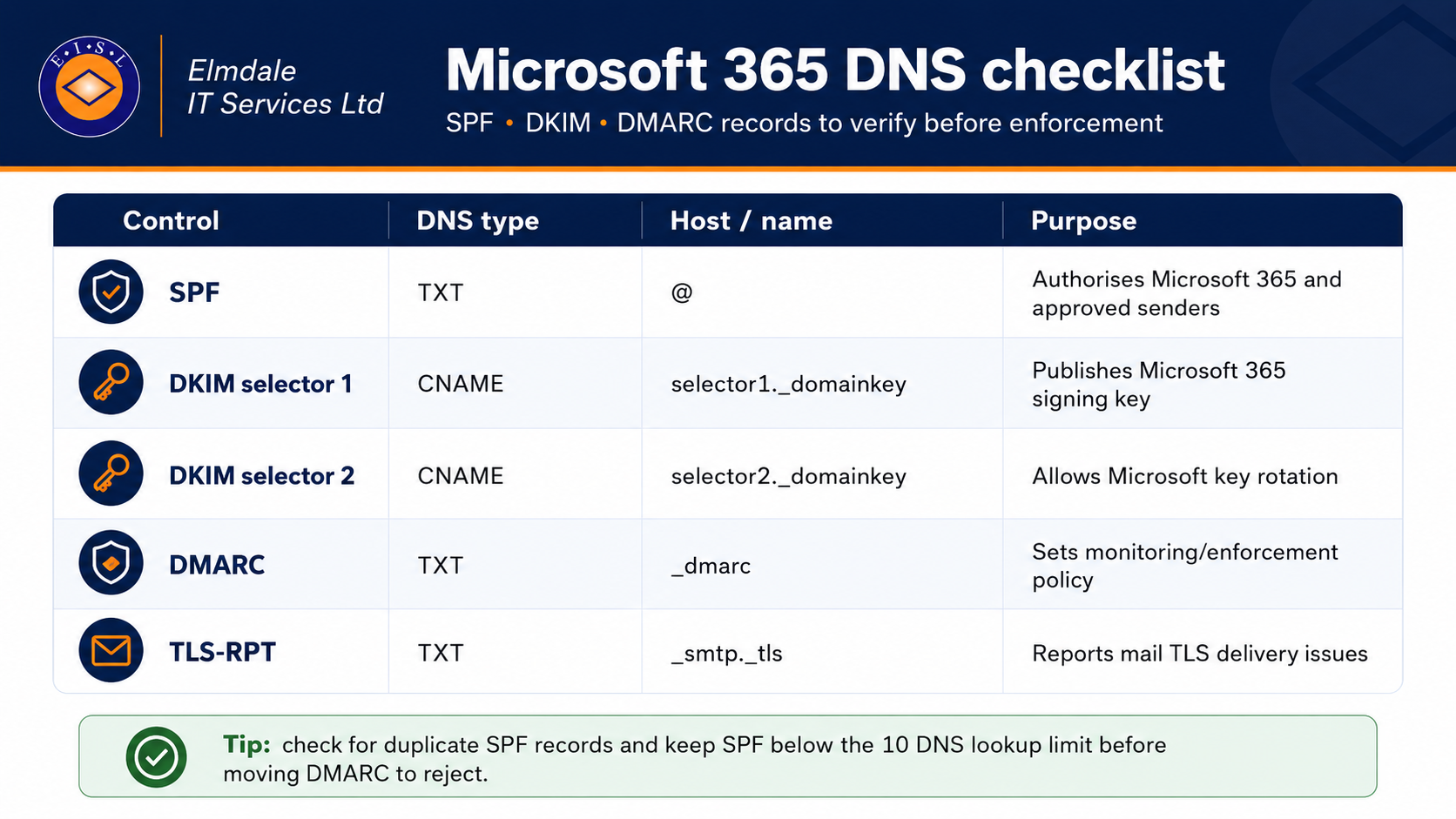
DKIM adds a cryptographic signature to outbound email. The receiving mail server can look up the matching public key in DNS and check that the message has not been altered in transit. In Microsoft 365, DKIM is configured in Microsoft Defender and normally requires two CNAME records per sending domain.
DMARC brings SPF and DKIM together. It tells receiving mail systems what to do if a message fails authentication and where to send reports. Those reports are valuable because they show which systems are sending mail for your domain, including systems you may have forgotten about.
Before changing DNS: map every legitimate email sender
Before you edit SPF or publish a stricter DMARC policy, make a list of every service that sends email using your domain. This prevents a common mistake: blocking your own legitimate email because a system was missed during the setup.
- Microsoft 365 / Exchange Online
- Your website contact forms or WordPress SMTP service
- CRM platforms such as HubSpot, Salesforce or Zoho
- Marketing platforms such as Mailchimp, Brevo or Campaign Monitor
- Helpdesk systems such as Zendesk, Freshdesk, Autotask or HaloPSA
- Finance and accounting tools that send invoices or statements
- Line-of-business systems, monitoring alerts, HR platforms and booking systems
For each system, check whether it needs SPF, DKIM, or both. Modern platforms increasingly support DKIM signing, and where possible DKIM should be enabled for third-party senders rather than relying on SPF alone.
Step 1: check or create your Microsoft 365 SPF record
SPF is published as a TXT record in your public DNS zone. For a domain that only sends mail through Microsoft 365, the basic record is usually:
v=spf1 include:spf.protection.outlook.com -allIf you use other approved sending platforms, merge them into the same SPF record. You should not have multiple SPF TXT records for the same domain. A domain with Microsoft 365, Mailchimp and SendGrid might look more like this:
v=spf1 include:spf.protection.outlook.com include:servers.mcsv.net include:sendgrid.net -allThere is an important limit here: SPF has a 10 DNS lookup limit. If your SPF record includes too many third-party services, receivers may treat the record as invalid. This is one reason to keep marketing or bulk sending on a dedicated subdomain where appropriate.
Step 2: enable DKIM signing in Microsoft 365
DKIM should be enabled for every custom domain that sends email from Microsoft 365. Microsoft now recommends checking the required selector values in Microsoft Defender or Exchange Online PowerShell because record formats can vary between tenants.
- Go to the Microsoft Defender portal.
- Open Email & collaboration, then Policies & rules.
- Open Threat policies and then Email authentication settings.
- Select DKIM and choose your custom domain.
- Copy the selector CNAME values shown for the domain.
- Add the two CNAME records at your DNS provider.
- Return to Defender and enable DKIM signing once DNS has propagated.
The host names are normally:
selector1._domainkey
selector2._domainkey
The destination values must come from your tenant. Do not guess these values from another guide, because Microsoft changed DKIM record formats for newer custom domains. Once enabled, send a test message and check the headers to confirm DKIM is passing.
Step 3: publish DMARC in monitoring mode first
DMARC is also published as a DNS TXT record. The record lives at the _dmarc host for your domain. For an initial deployment, Elmdale IT normally recommends monitoring first:
v=DMARC1; p=none; rua=mailto:dmarc-reports@yourdomain.co.uk; pct=100; adkim=r; aspf=rThe p=none policy does not block mail. It asks receivers to send DMARC reports so you can see what is happening. Those reports are XML files and are not pleasant to read manually, so use a DMARC reporting platform or managed monitoring service before enabling reporting at scale.
Once you have identified legitimate senders and fixed failures, you can move from p=none to p=quarantine and eventually p=reject. This staged approach reduces the risk of disrupting real business email.
A safe rollout plan for UK SMEs
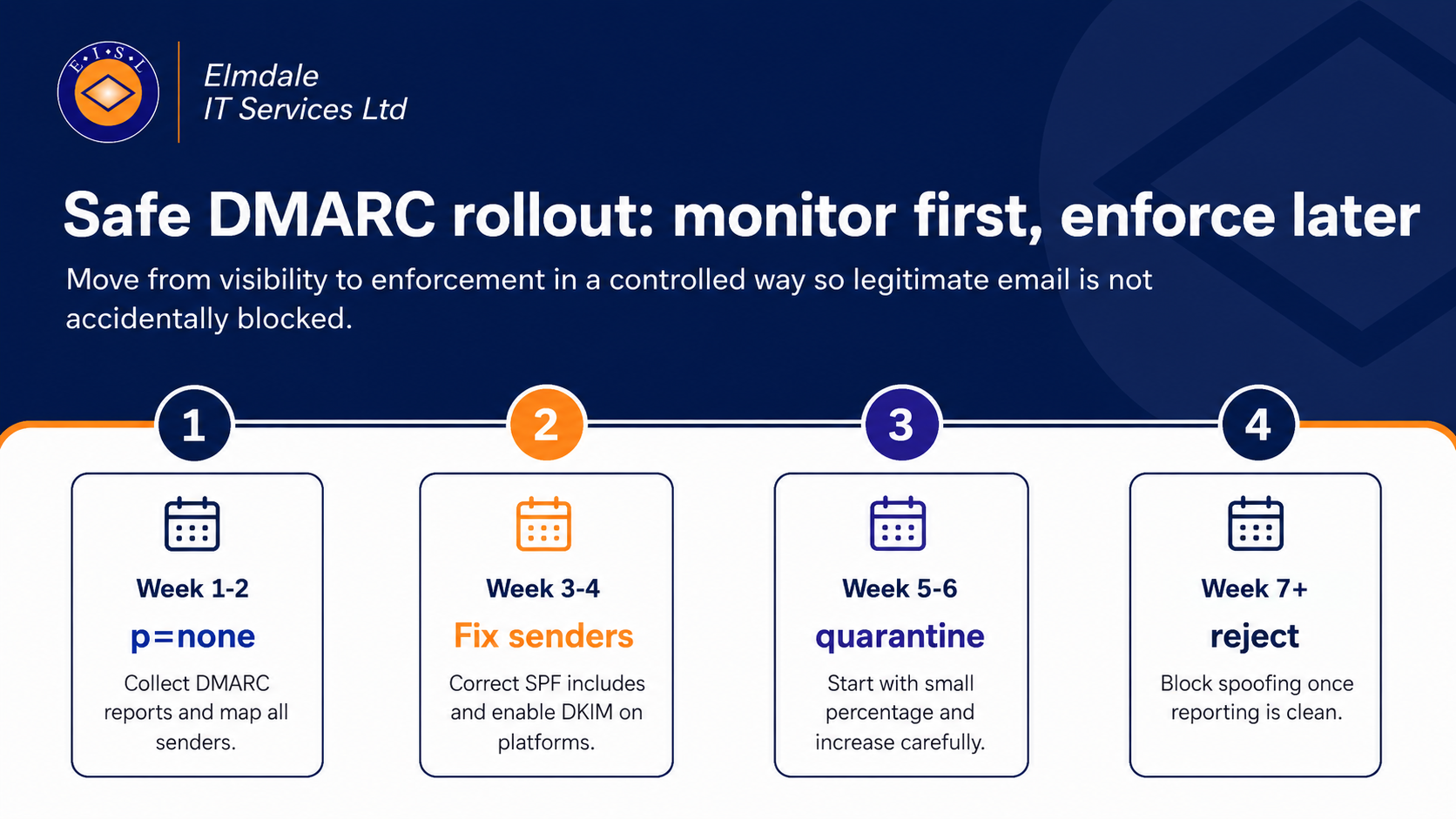
Every environment is different, but a sensible plan for many Microsoft 365 tenants looks like this:
- Week 1–2: publish DMARC at
p=noneand collect reports. - Week 3–4: fix legitimate senders that fail SPF or DKIM alignment.
- Week 5–6: move to
p=quarantine, often starting with a small percentage. - Week 7 onwards: move to
p=rejectonce reports show legitimate mail is passing.
High-risk domains, legal firms, schools, finance teams and organisations frequently targeted by invoice fraud should treat this as a priority. However, the move to reject should still be based on evidence from reports rather than guesswork.
Useful optional controls: TLS-RPT, MTA-STS, DNSSEC and BIMI
Once SPF, DKIM and DMARC are stable, there are additional controls worth considering. TLS-RPT can report issues with encrypted mail delivery. MTA-STS can help enforce encrypted SMTP transport for inbound mail. DNSSEC helps protect DNS responses from tampering where supported by your registrar. BIMI can display a verified brand logo in some inboxes, but usually requires DMARC enforcement first and may require a verified mark certificate.
Common mistakes we see in Microsoft 365 tenants
- Multiple SPF records: there should be one SPF TXT record per domain or subdomain. Merge records rather than stacking them.
- Too many SPF lookups: lots of third-party include statements can push the record beyond the SPF lookup limit.
- DKIM not enabled: the domain may be working for email but still not DKIM signing with the custom domain.
- DMARC reports sent to a normal mailbox: aggregate reports are XML files and need a parser or monitoring platform.
- Moving to reject too quickly: enforce only once legitimate senders are passing.
- Forgetting unused domains: parked or unused domains should also be protected so attackers cannot abuse them.
How Elmdale IT can help
Elmdale IT Services helps businesses, schools and professional services firms secure Microsoft 365 properly. Our team can audit your current DNS records, identify legitimate sending systems, configure SPF, DKIM and DMARC, monitor reports and align your email security controls with Cyber Essentials and wider cyber security best practice.
We can also review Microsoft Defender for Office 365, mailbox security, conditional access, MFA, endpoint protection, backup and user awareness training as part of a broader Microsoft 365 security review.
Frequently asked questions
Does Microsoft 365 automatically protect my custom domain with SPF, DKIM and DMARC?
Microsoft 365 domain setup normally asks you to add DNS records, including SPF for mail flow, but DKIM and DMARC still need to be checked and configured properly for your custom domains. You should not assume that a working mailbox means your domain is protected against spoofing.
Should DMARC start at p=reject?
Usually no. Start with p=none, review reports, fix legitimate senders, then move to quarantine and reject. This is the safer approach for most live businesses.
How long does it take to configure SPF, DKIM and DMARC?
A simple Microsoft 365-only domain can often be reviewed and configured quickly, but environments with websites, CRMs, marketing tools and legacy systems take longer because each sending platform must be checked. The monitoring phase should run long enough to catch normal business sending patterns.
Can Elmdale IT do this as part of Cyber Essentials preparation?
Yes. Email authentication is a practical control that supports a stronger Microsoft 365 security posture and can be reviewed alongside MFA, secure configuration, endpoint protection, patching, backup and user awareness.
Reference links for editorial review: Microsoft SPF guidance, Microsoft DKIM guidance, Microsoft DMARC guidance, NCSC email security and anti-spoofing guidance.